







Key Takeaways
- Offline capable dispatch software should let techs receive, document, and close jobs without signal, then sync automatically when connectivity returns.
- Dead zones cause delayed invoices and lost revenue, and many vendors only offer partial offline modes that still require signal to complete jobs.
- Full offline capability (Tier 3) is essential for teams working in basements, rural areas, or thick-walled buildings where signal is unreliable.
- Before signing, test any vendor in a real dead zone such as a basement, rural route, or thick-walled building to confirm the complete job lifecycle works offline, including forms, signatures, and invoice edits.
- FieldPulse provides Tier 3 offline capability with robust caching and automatic sync, so your team can rely on it for consistent field service operations.
See how FieldPulse handles the dead-zone test
The Problem: Dead Zones Cost Jobs And Delay Invoices
A tech finishes a job in a basement mechanical room, a rural route, or a commercial building with thick concrete walls, and the details stay on the device or in manual notes until signal returns. The work is finished, but the paperwork is still sitting on the device. The office waits, then chases. The invoice goes out days later or not at all, and cash that your team already earned sits uncollected.
68% of field technicians regularly work in areas with poor cellular connectivity. Those dead zones are not rare edge cases. They are basements, mechanical rooms, rural substations, and buildings with thick concrete walls, the same environments your techs see every day.
The connectivity gap is only half the problem. The other half is how vendors describe “offline capable.” Many platforms count a cached schedule as offline capability. Your team signs, deploys, and then discovers that closing out a job still requires signal. The tech writes the details in manual notes, drives back into range, and re-enters everything. The office does the work twice, and the invoice waits behind it.
This is a dispatch problem as much as a technician-app problem. The office-to-field handoff is where a job either carries its documentation or loses it. If the job record does not travel with the tech into the dead zone, with everything needed to close it out, the handoff has already failed before the truck leaves the lot.
What Offline Capable Dispatch Software Should Do
Set clear expectations for what your software must handle without a signal. Each of these capabilities should work on its own, without a connection:
- Let a tech open a dispatched job, add notes and photos, change status, clock in and out, complete forms and signatures, and close the job out with no signal.
- Cache the jobs, customers, estimates, and invoices your field needs before the tech leaves signal range.
- Save every offline action locally and sync it automatically the moment the device reconnects.
- Show the tech what has synced, what is pending, and what failed, so nobody re-enters work that already saved.
- Resolve conflicts between office edits and field edits without silently overwriting either one.
If a vendor’s demo cannot demonstrate each of these points in a real dead zone, the platform does not meet the full offline job lifecycle standard.
The Three Tiers Of Offline Capability
Offline modes fall into three clear tiers. The tier a vendor sells you determines whether your techs can actually finish a job without signal or whether they are back on manual notes the moment the bars disappear.
| Tier | What the tech can do offline | Operational consequence |
|---|---|---|
| Tier 1: Read-only cached schedules | View the day’s jobs | Job done on manual notes, re-entered later; office does the work twice |
| Tier 2: Partial offline | Change statuses, add notes | Closeout stalls until signal returns; invoice waits behind it |
| Tier 3: Full offline job lifecycle | View jobs, add notes and photos, change status, clock in/out, edit estimates and invoices, complete forms and signatures | Job finished and ready to invoice the moment signal returns |
Tier 1 is the tier most often sold as “offline capable.” The tech can see the schedule but cannot create, document, or close anything. The job still gets done on manual notes and re-entered later. Tier 2 improves things slightly. Statuses and notes work, but the closeout still waits for signal, and the invoice waits behind it.
A dispatch operation with multiple techs and multiple job types needs Tier 3. With Tier 1 or Tier 2, the closeout and the invoice both wait for signal. An app that tells a tech to wait for connectivity is a product failure, because a tech on a job site cannot wait.
See a complete technician workflow, including what happens when the signal drops
What Has To Be Cached Before The Tech Leaves Signal Range
The caching question is really a dispatch question. Your office needs to know what to push to the device before the day starts. Ask for a caching window instead of a vague “offline access” spec. The caching window is the number of days of data that ride along on the device.
A caching window tells you what will actually be on the device on a Monday morning after a weekend with no sync. If a vendor cannot tell you their caching window in days and their per-item limits, you cannot trust their offline feature list to describe what your techs will have in the field.
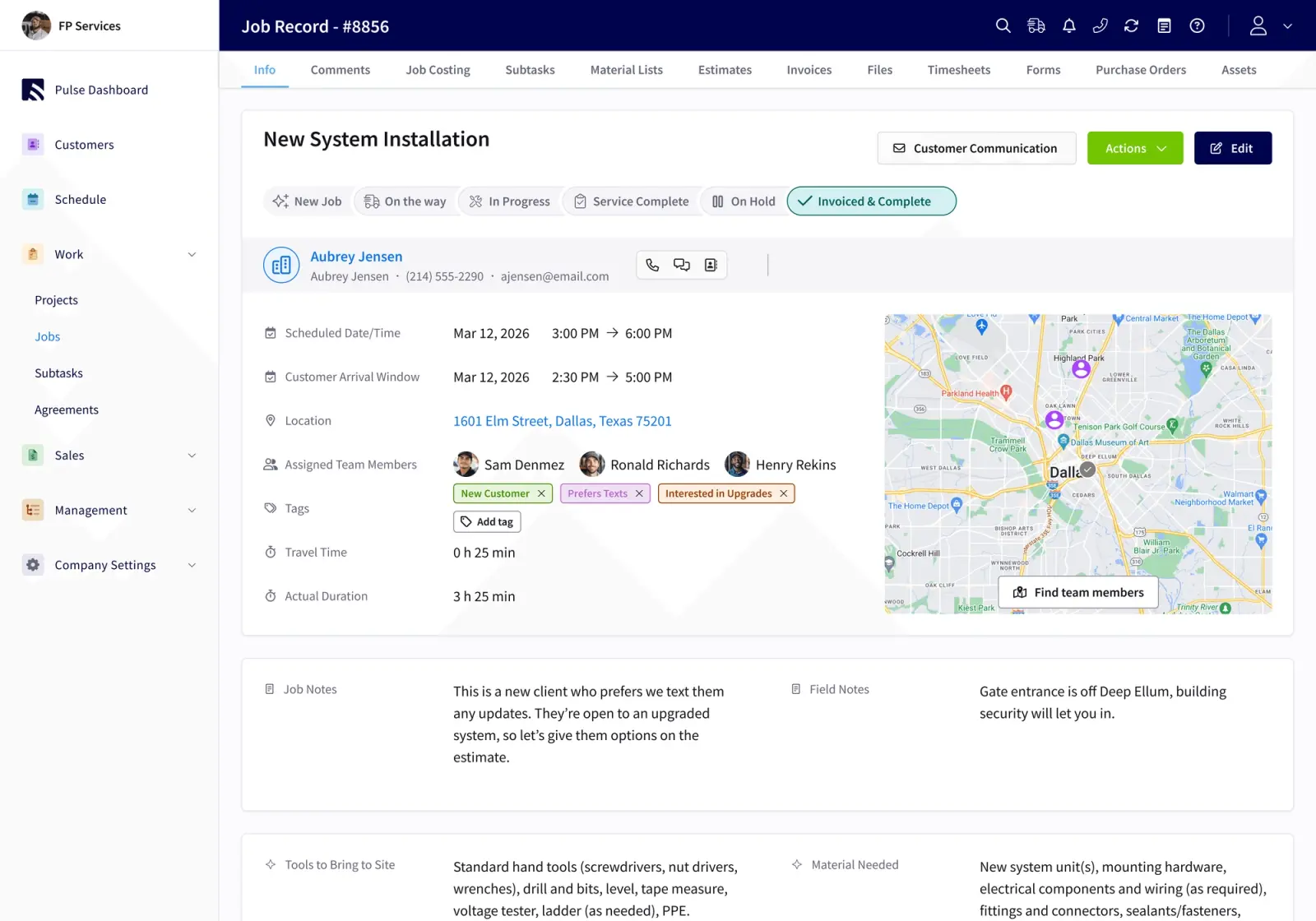
FieldPulse’s caching behavior shows what a real caching window looks like in practice. Before a tech leaves signal range, FieldPulse caches enough data on the device to finish the day’s work, not just the schedule:
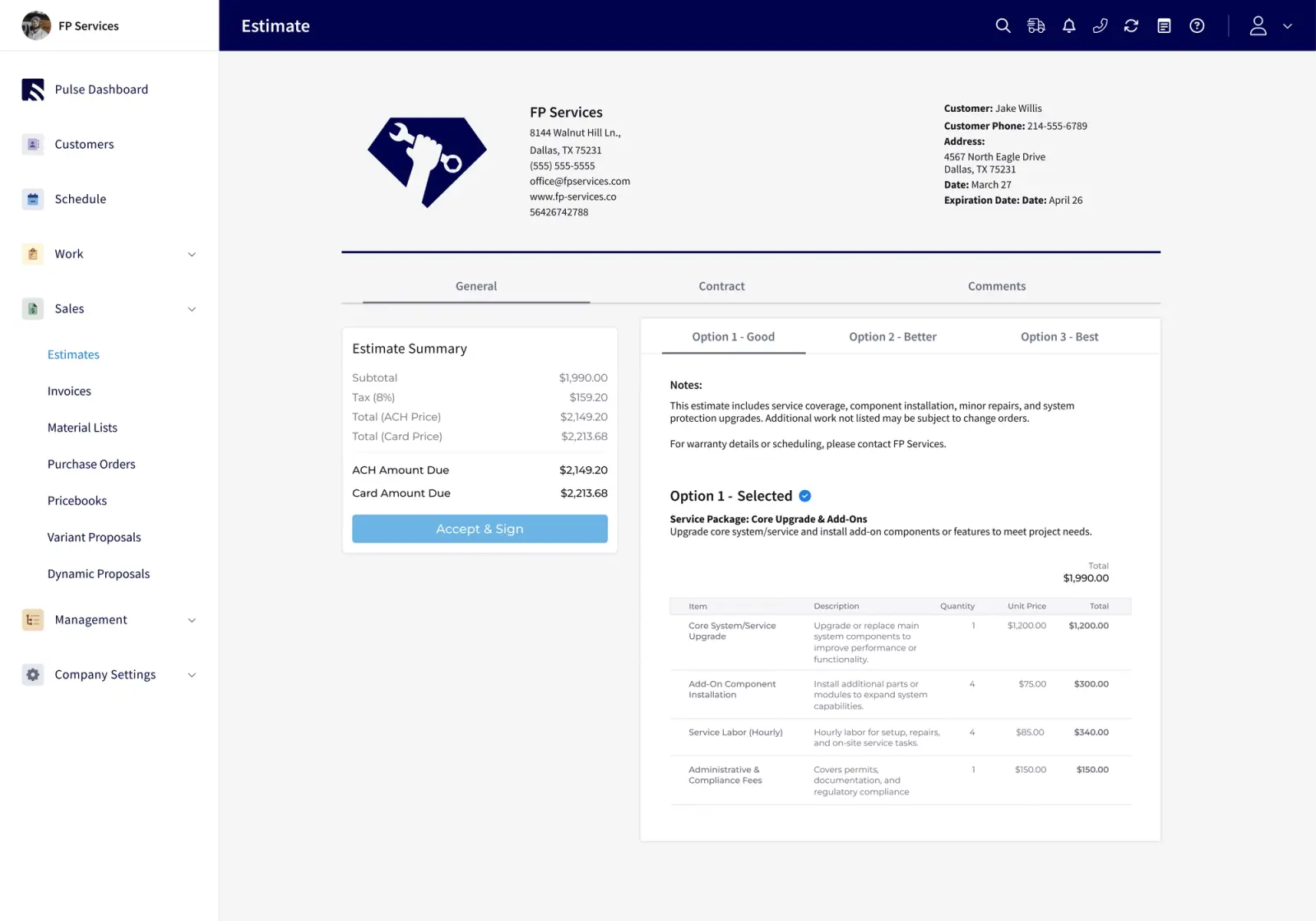
- The past week of jobs, projects, customers, estimates, and invoices
- Unlimited job notes and up to 50 photos at a time
- Status updates and clock in/out
- Up to 600 cached estimates and invoices with 10,000 line items, plus 100 estimate templates and 100 invoice templates
- Up to 600 existing custom forms (200 each for jobs, projects, and customers) and 20 cached form templates (with the Custom Forms add-on)
- Up to 300 cached material lists and 100 bundle items
FieldPulse also protects work in progress. If signal drops mid-edit, the active draft transitions to an offline draft automatically. Everything entered offline saves locally and syncs the second the device is back in signal.
When you evaluate any vendor, ask for their caching window in days and their per-item limits. The feature list describes what is possible. The caching window describes what will actually be on the device when your tech is standing in a basement with no bars.
The Dead-Zone Test: How To Evaluate Any Vendor’s Offline Mode
Use a simple field test on every vendor you evaluate. Do not rely only on a feature matrix or a sales description of offline mode. Take the demo device into a real dead zone and walk through these steps:
- Go to a basement, rural route, or thick-walled building where your techs usually lose signal.
- Open a dispatched job and confirm the details are there.
- Add notes, upload photos, change status, and clock in and out.
- Complete a form and capture a signature.
- Edit an estimate or invoice.
- Return to an area with signal and verify every change appears in the office view.
- Confirm the job status is correct and the invoice can be generated without re-entry.
If any step grays out, spins, or shows a “no connection” message, the platform is not Tier 3. Most vendors cannot complete this walkthrough, and the ones that can have built something real. Run this test on every vendor you evaluate, not just one.
Sync Behavior And Conflict Handling
Sync behavior becomes critical when the office changes a job while a tech is offline working it. This is where platforms that look identical in a demo behave very differently in the field.
Vendors usually rely on one of three conflict-resolution policies, and each one affects your operations in a different way:
- Last-write-wins: The most recent edit overwrites the other. This approach is simple to build, but it silently discards concurrent work. A dispatcher’s priority change can disappear under a tech’s older copy, and nobody sees it happen.
- Field-level merge: Edits to different fields both survive. If a tech updates notes and a dispatcher changes the job priority, both changes are preserved because they touched different fields. This is the correct mechanism when different fields are edited by different people.
- Queue-for-review: Conflicts route to a supervisor before anything commits. This approach is safer for high-stakes fields like billing amounts, but slower.
Before you sign with any vendor, ask these questions directly:
- What happens when dispatch changes a job while a tech is offline working it?
- What happens when two techs edit the same job offline?
- Does the system merge field by field, or does one edit overwrite the other?
- Who sees the conflict, and when?
This failure mode is where real money disappears. A missing photo is an unprovable job, an unsynced signature is an unbillable visit, and a sequence of edits nobody can reconstruct is a billing dispute nobody can settle. A platform that silently overwrites work hides the problem until after the invoice is disputed.
Is There Free Offline Dispatch Software?
Free tools can provide genuine offline data collection such as notes, photos, and basic status updates, but they usually stop short of the full offline job lifecycle. Most free or entry-level dispatch tools display a schedule and allow limited field updates offline, yet they cannot complete forms, capture signatures, close out a job, or generate an invoice without a connection.
The caps that come with free tiers compound the issue. Free plans typically limit jobs per month, limit seats, or gate the accounting export. Those caps do not scale with a growing team. Once your operation needs to create and close jobs offline, with forms, signatures, and invoices, free tools stop at the schedule.
For a residential trade team running multiple techs across multiple job types, the real question is whether a tool can get a job from dispatched to invoiced with no signal. For free tools, the honest answer is that they cannot.
What This Looks Like In Practice For A Residential Trade Team
FieldPulse is built for established, team-based residential service businesses in the 7-to-50-technician range. It has particular strength in HVAC, plumbing, and garage door service, with strong secondary coverage in electrical, appliance repair, and locksmith work.
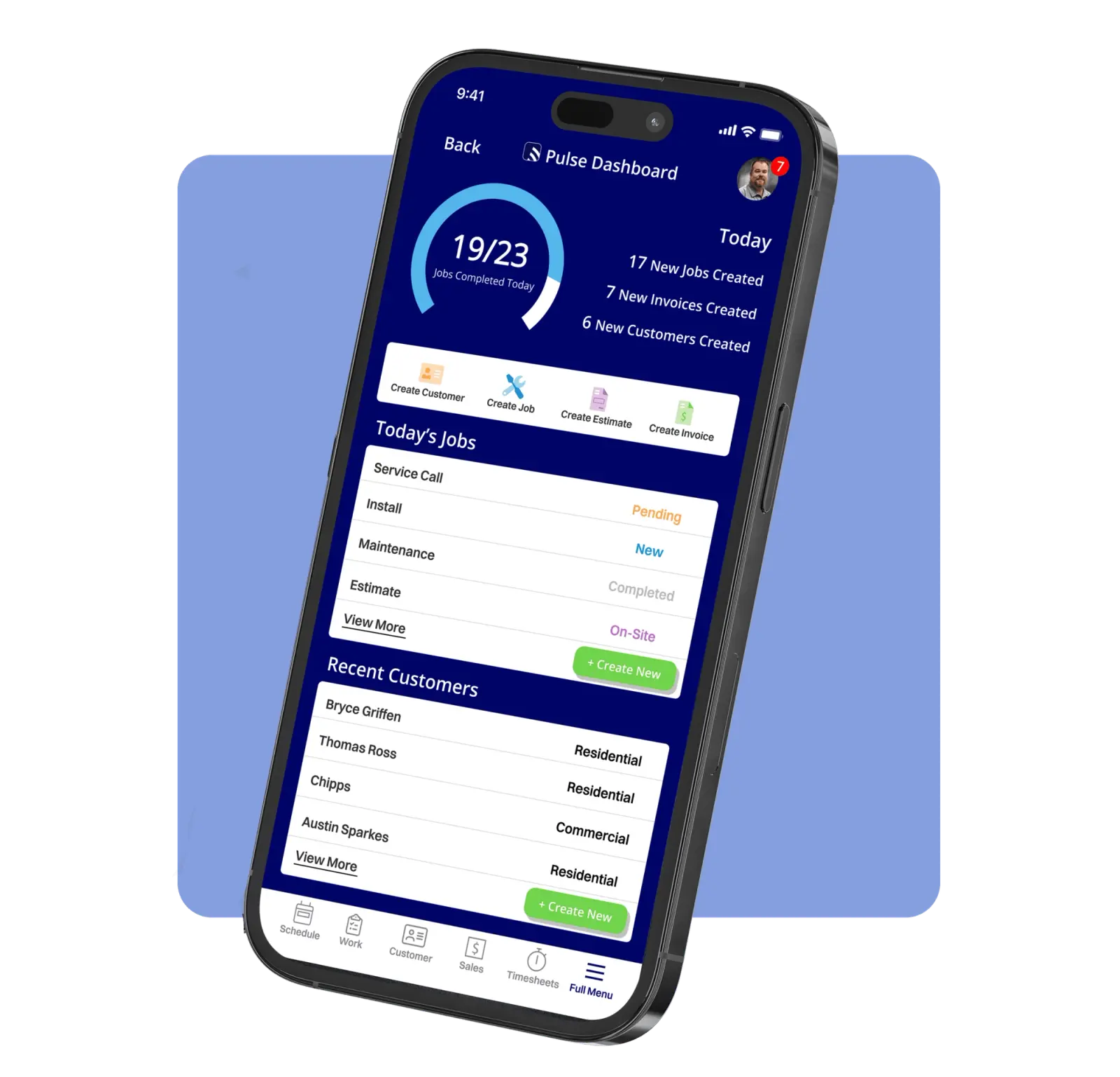
In practice, FieldPulse supports most standard job tasks offline. Your techs can view cached jobs, add notes and photos, change status, clock in and out, and update cached estimates and invoices. Everything syncs on reconnect. If signal drops mid-edit, the active draft transitions to an offline draft automatically, so work in progress is never lost.
FieldPulse also has clear limits on what it supports offline. Payment collection (except cash marked for later), purchase order creation, and new customer or job record creation all require a connection. The offline workflow focuses on the job that was dispatched before the tech left signal range, not on creating new records in the field without connectivity.
On average, FieldPulse customers report 25% efficiency gains. Office teams save 40+ hours per month, field teams see a 50% increase in on-time delivery, and businesses add 16+ customers every month.
Offline Capable Dispatch Software For iPhone And Android
Even a Tier 3 platform can behave differently depending on the phone in your tech’s pocket. Device platform genuinely changes what offline capability looks like. iOS does not grant arbitrary background execution, so background work runs through limited background task and background transfer APIs, and the app can be suspended or terminated between sync attempts. Android defers network access under battery optimization, and OEM battery managers on several device families are more aggressive than stock Android, stopping background work that documented APIs say should run.
Background sync behavior, local storage limits, and photo and media handling differ between iOS and Android. Test offline mode on the devices your techs actually carry, not on a demo tablet in an office with good Wi-Fi. If a vendor’s offline mode behaves differently on one platform, that difference belongs in your evaluation.
Frequently Asked Questions
Here are the questions buyers ask most often when they start evaluating offline capable dispatch software.
What Is Offline Capable Dispatch Software?
Offline capable dispatch software lets a tech receive a dispatched job, document it with notes, photos, forms, and signatures, and close it out with no cellular or Wi-Fi signal. The office pushes the job to the device before the day starts, and the field finishes it whether or not there are bars. When the device reconnects, everything syncs automatically. The key distinction is between software that only shows a cached schedule and software that supports the full job lifecycle offline, from open to invoiced.
Which Tier Of Offline Capability Does A Growing Team Need?
If your techs work in basements, rural routes, mechanical rooms, or any environment where signal is unreliable, you need Tier 3. Anything less leaves the invoice dependent on signal and pushes your team back to manual notes and re-entry.
What Syncs When The Connection Comes Back?
Everything the tech did offline, including notes, photos, status changes, clock in and out records, forms, signatures, and edits to cached estimates and invoices, should sync automatically. The tech should not need to trigger it. A well-built platform also shows the tech what has synced, what is pending, and what failed, so nothing gets re-entered unnecessarily.
What Happens When The Office And The Field Disagree While A Device Is Offline?
The answer depends on the platform’s conflict-resolution policy. Ask each vendor whether they use last-write-wins, field-level merge, or a queue-for-review model. Then ask what happens when dispatch changes a job while a tech is offline working it, whether the system merges field by field or overwrites one edit, and who sees the conflict and when.
Can Free Tools Handle Offline Job Completion?
Free and entry-level tools usually handle offline data collection such as notes, photos, and basic status updates, but they rarely support full job completion offline. Most cannot complete forms, capture signatures, close out a job, or generate an invoice without a connection, and their usage caps do not match a growing team.
How Do I Test Offline Mode Before I Buy?
Run the dead-zone walkthrough from earlier in this article on the vendor’s demo device, using your own job types. If any step fails, the platform is not Tier 3.
Does Offline Capability Differ Between iPhone And Android?
Yes. Background sync rules, storage behavior, and media handling differ between iOS and Android, and some Android manufacturers apply extra battery limits. Always test offline behavior on the same models your techs carry.
Conclusion: The Criteria That Actually Matter
Dead zones cost jobs and delay invoices. Vendors who count a cached schedule as offline capability hide the problem until after the contract is signed. By the time your team discovers the closeout requires signal, manual workarounds are already back in play.
Four criteria matter most when you evaluate offline capable dispatch software:
- The three tiers: Identify which tier a vendor is actually selling. Tier 3 gets the job from dispatched to invoiced with no connection.
- The caching window: Ask for the number of days of data that ride along on the device and the per-item limits. That number tells you what your techs will really have in the field.
- The dead-zone test: Run the real-world walkthrough in basements, rural routes, or thick-walled buildings for every vendor you evaluate. If any step fails, the platform is not Tier 3.
- The sync-conflict answer: Ask directly what happens when dispatch changes a job while a tech is offline and how conflicts are handled. A clear answer protects your documentation and your invoices.
FieldPulse meets the full offline job lifecycle standard. Its caching window, which includes the past week of jobs, projects, customers, estimates, and invoices on the device, is the benchmark to hold other vendors to. Use it as your reference point in every demo you run.
See how FieldPulse connects your office and your field on one workflow