









Key Takeaways
-
Field service CRM implementation is primarily a customer-and-asset data project. The core work moves records, service history, and communication into one unified system.
-
Successful rollouts for 7-to-50-technician teams depend on three key roles: the owner or operations lead, the office administrator or dispatcher, and the tech.
-
Scope the work before configuring anything. Define day-one capabilities, data migration needs, accounting connections, and business complexity to avoid stalled implementations.
-
Two-way QuickBooks Online sync eliminates duplicate entry by keeping customer records, invoices, payments, and corrections aligned between systems.
-
FieldPulse provides a unified workflow and implementation support that connects office and field teams for residential service businesses of this size.
What A Field Service CRM Actually Holds And What An FSM Adds
The CRM-versus-FSM question trips up a lot of buyers, so here is the plain answer.
A field service CRM holds the customer record: contact details, service locations, full job history, equipment and asset records with serial numbers and installation history, warranty documents, photos, files, invoices, and every logged communication. It becomes the single source of truth about who your customers are and what has been done for them.
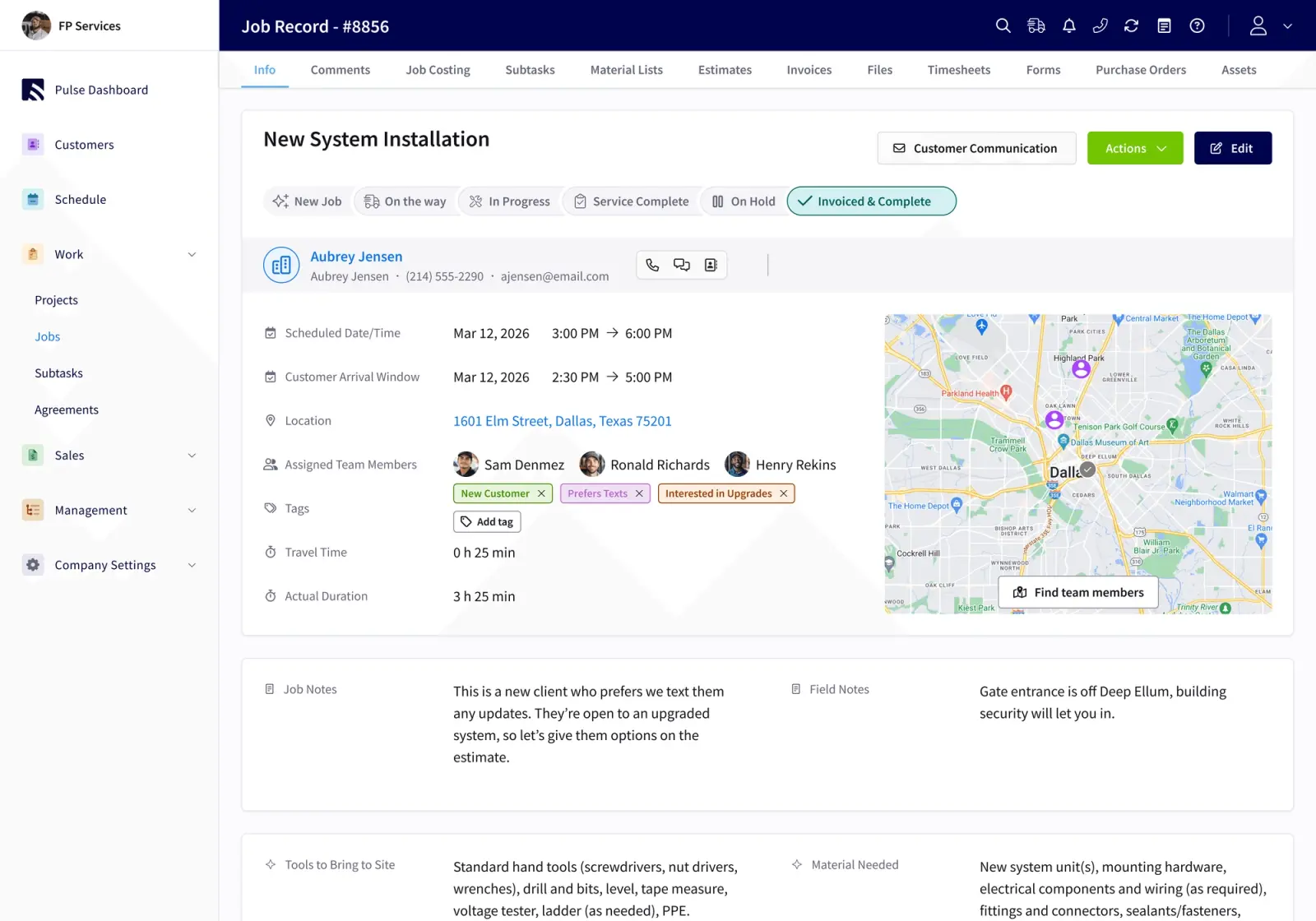
FSM software adds the operational layer on top: scheduling and dispatch, work orders, project management, timesheets, and job costing. The FSM is how work gets assigned, tracked, and closed. The CRM is the record of who that work was done for and what your team found.
The practical consequence for implementation is simple. Because the real work is about customer and asset data, the first question is not how to configure the dispatch board. It is what customer and equipment information has to be right on day one. That question shapes everything that follows.
Scope The Work Before You Configure Anything
Most implementation guides skip scoping entirely, which is why rollouts stall. Before anyone touches a configuration screen, your owner or operations lead, with the office administrator in the room, needs to answer four questions:
-
Which capabilities are you turning on day one, and which come later? Trying to activate everything at once slows adoption. Configure the workflows that cover about 80 percent of your team’s daily activity at launch. Add more complex scenarios in the following months.
-
What data has to migrate, and what gets rebuilt? Your customer list, equipment records, and job history are the core. Some of that data transfers. Some of it should be rebuilt cleanly instead of importing old errors.
-
How is your accounting set up, and what has to connect? If you are on QuickBooks Online, that connection shapes the entire data phase. If you are on QuickBooks Desktop, that is also supported, but the path looks different.
-
How complex is your business, really? Count your job types, typical number of service locations per customer, and how many people need access at each permission level.
At this phase, “done” means you have a written list of day-one capabilities, a clear data inventory, and a named implementation contact on your side. FieldPulse onboarding typically runs two to six weeks depending on your team size, which capabilities you enable, how much data has to migrate, and how your accounting is set up. An implementation manager begins recurring working sessions after signing. The variable that stretches implementation timelines most is data migration complexity, followed by how quickly the team makes process decisions.
This rollout is real work. Anyone who says otherwise is not being straight with you.
The Data Question: What Moves And What Gets Rebuilt
Nobody wants to rebuild a customer list in a second system. When you connect QuickBooks Online to FieldPulse, your existing QuickBooks Online customers and records come with you instead of being recreated from scratch.
Here is what syncs both ways between FieldPulse and QuickBooks Online:
-
Customers and line items
-
Estimates and invoices
-
Payments
-
Purchase orders with full line-item detail
-
Vendors
Timesheets flow into QuickBooks Online when a tech clocks out. Tax rates come from QuickBooks Online, invoice numbering can follow your existing sequence, and payments follow the standard invoice → payment → undeposited funds flow. It works with QuickBooks Online Essentials, Plus, and Advanced in the US, Canada, and Australia. QuickBooks Desktop is also supported.
Your office administrator or bookkeeper usually owns this phase, working with the FieldPulse implementation manager. “Done” here means a test invoice goes out in FieldPulse, lands in QuickBooks Online correctly, and comes back without a duplicate. A rehearsal migration before final cutover catches field-mapping errors while there is still time to fix them. It is far easier to catch sync errors early than to untangle them once dozens of invoices are affected.
See How Two-Way Sync Ends Duplicate Entry — Book A Demo
Configure The Customer Record And The Workflow
The configuration that matters most for a CRM rollout is the customer record and the job workflow, not the dispatch board.
In FieldPulse, that record is configured in three layers: the profile itself, Customer Sites for multi-location accounts, and parent-child relationships for billing-versus-site mismatches. Customer Sites handle customers with multiple service locations. Parent-child customer relationships handle cases where the party paying the invoice is different from the party on site, which is common in commercial installation work and property management.
On top of the customer record sits ClearPath, which is included in the core platform. ClearPath has three components:
-
Custom Status Workflows. Your team defines and names the stages a job moves through. Installs, maintenance calls, repairs, and emergency responses each get their own sequence. The owner or operations lead owns this configuration.
-
Status Action Flows. Inside each stage, your team defines what has to happen before the job moves on, such as a photo, a checklist, a signature, a form, or a purchase order. The office administrator sets these requirements. Nothing moves forward until the required action is complete.
-
ClearPath’s Mobile Focus View. Your tech sees a clean, ordered list showing only what the current stage requires, with single-tap Action Buttons for common tasks. The tech does not configure anything. They follow what the office built.
This division of labor makes ClearPath work. The office defines the workflow, and the tech sees only the current step. ClearPath also ties labor hours to specific jobs, which is the precondition for job-level profit margin visibility.
The Office Administrator’s Rollout
Your office administrator or dispatcher is the adoption gatekeeper. If they are not convinced, the rollout stalls quietly, even if the owner loves the demo. Here is what changes for them when FieldPulse goes live.
These are the biggest day-to-day improvements your office administrator sees:
-
One customer and job record the whole team works from. Your administrator can answer a customer’s question without calling a truck, because the job history, equipment record, and current status sit in one place.
-
Drag-and-drop scheduling and dispatch with live technician locations. When emergency requests come in, the schedule can be adjusted without rebuilding the day through phone calls.
-
ClearPath status workflows that push job progress to the office automatically. Instead of chasing techs for updates, your administrator sees status changes as they happen. Customer messages, like an “On the Way” text, fire at the right stage without anyone remembering to send them.
-
Deliberate roles and permissions. People get the access they need. Financial and billing information stays restricted while techs still see everything required for the job.
The moment adoption usually turns for office administrators is the two-way QuickBooks Online sync. When your bookkeeper corrects something in QuickBooks Online, that fix carries back into FieldPulse instead of being overwritten. That is what actually ends double entry: a structural fix, not a promise.
The rollout is real work, and your office carries part of it. FieldPulse sequences that work into phases with small tasks between sessions instead of dropping everything at once. Projects with excellent change management meet or exceed their objectives at nearly twice the rate of those with poor change management. Your office administrator drives that change management.
Find Your Heaviest Admin Workload Areas
The Technician’s First Week
Your techs did not ask for new software. They judge it in the first week, and their adoption decides whether the whole implementation holds. Here is what that first week actually looks like.
From the tech’s point of view, FieldPulse shows up in a few clear ways:
-
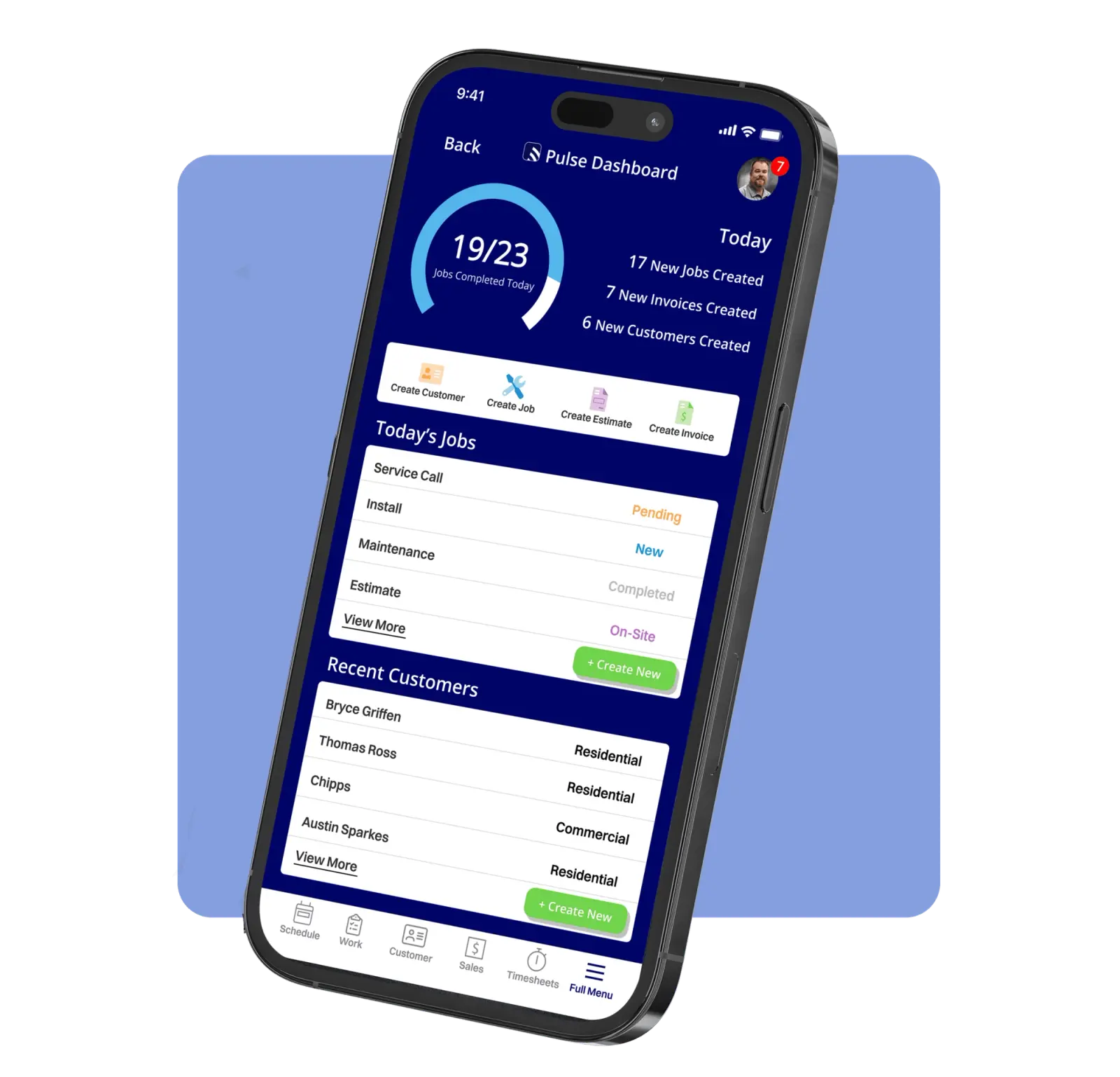
Mobile scheduling view. The day’s jobs show address, contact, notes, and the customer’s history in one place. Your tech can look at tomorrow the night before and arrive already knowing what they are walking into.
-
ClearPath’s Mobile Focus View. A short, ordered list shows only what the current job stage requires, with checklists and single-tap Action Buttons. That means fewer taps, less to remember, and faster ramp-up for new hires.
-
Timesheets clocked by job or shift. Time flows into job costing and into QuickBooks Online at clock-out.
-
Job-specific forms with signatures. Forms attach directly to the job record and get completed and signed on site.
Connectivity often drops in basements, attics, crawlspaces, and rural service areas. FieldPulse’s caching behavior keeps the past week of jobs, projects, customers, estimates, and invoices on the device. Your techs can save job notes, upload batches of photos, update statuses, and clock in and out without signal. If signal drops mid-edit, the active draft transitions to an offline draft automatically. Everything entered offline saves locally and syncs as soon as the device is back in signal.
There are a few limits to know. Offline payment collection, purchase order creation, and new customer or job record creation are not supported offline. ClearPath’s Mobile Focus View does not display while offline. For the majority of standard job tasks in the field, such as viewing cached job details, adding notes and photos, updating status, and clocking in and out, your techs can complete the work without cell signal and sync when they are back in range.
RDI’s field crew had used manual time cards for thirty years. The team expected six months to get adoption and was running payroll off the FieldPulse app in two weeks. As Scott Bertram put it: “The guys call into the office and say, ‘hey, I noticed in FieldPulse this wasn’t quite right, like, update it.’ They hold a certain level of accountability and they love it to be right from that perspective.”
How Long Field Service CRM Implementation Takes For A Small Team?
Enterprise platforms like Salesforce Field Service and Microsoft Dynamics 365 Field Service are built for IT departments and multi-month budgets. Deployments can run shorter or longer depending on complexity.
As noted earlier, with FieldPulse, the typical window for a 7-to-50-technician residential service business is two to six weeks. In practice, that timeline follows a six-step sequence:
-
Scope the work. Define capabilities, data inventory, accounting requirements, and business complexity. The owner and office administrator own this together.
-
Get an implementation manager and a recurring session cadence. FieldPulse assigns an implementation manager after signing who runs working sessions with your team.
-
Configure the foundation. Set system preferences, templates, permissions, ClearPath workflows, and the mobile workflow. The office administrator owns this with implementation manager support.
-
Move data and connect QuickBooks Online. This phase can extend the schedule depending on data condition. The office administrator or bookkeeper owns this.
-
Enable each role with focused training. Each role, owner, office administrator, and tech, gets training matched to their actual workflow.
-
Transition to ongoing support. The implementation phase ends and ongoing support begins.
Your team will have homework between sessions, which is what makes the change stick. Teams combining a phased communication plan, role-based training, and weekly adoption reviews consistently see the steepest gains in the 30-to-90-day post-launch window.
Common Pitfalls And How To Avoid Them
Most stalled field service CRM rollouts fall into a few patterns. Here are the common mistakes and how to avoid them.
-
Treating implementation as a scheduling project. It is mostly a customer-and-asset data project, so start with the customer record and equipment details.
-
Leaving the office administrator out of the demo and the scoping. This is how rollouts stall quietly. Bring your office administrator into the evaluation before you sign anything.
-
Configuring every capability at once instead of phasing. Start with the workflows that cover the majority of your daily activity. Add complexity in the months that follow.
-
Assuming techs will read documentation. Give them a short, ordered list in the mobile view. ClearPath’s Mobile Focus View is built for this so the tech sees only what the current stage requires.
-
Expecting the books to reconcile themselves without testing the two-way sync first. Run a test invoice through the full cycle, out of FieldPulse, into QuickBooks Online, and back, before go-live. Catch sync errors early rather than untangling them once dozens of invoices are affected.
FAQ
What Does Field Service CRM Implementation Mean For A Service Business?
Field service CRM implementation means moving your customer records, service history, equipment and asset data, and communication onto one system your office and your field both work from. For a 7-to-50-technician residential service team, that means getting your customer list, equipment records, and job history into one place and connecting it to your accounting system before you worry about dispatch board configuration.
What Is The Difference Between A Field Service CRM And An FSM?
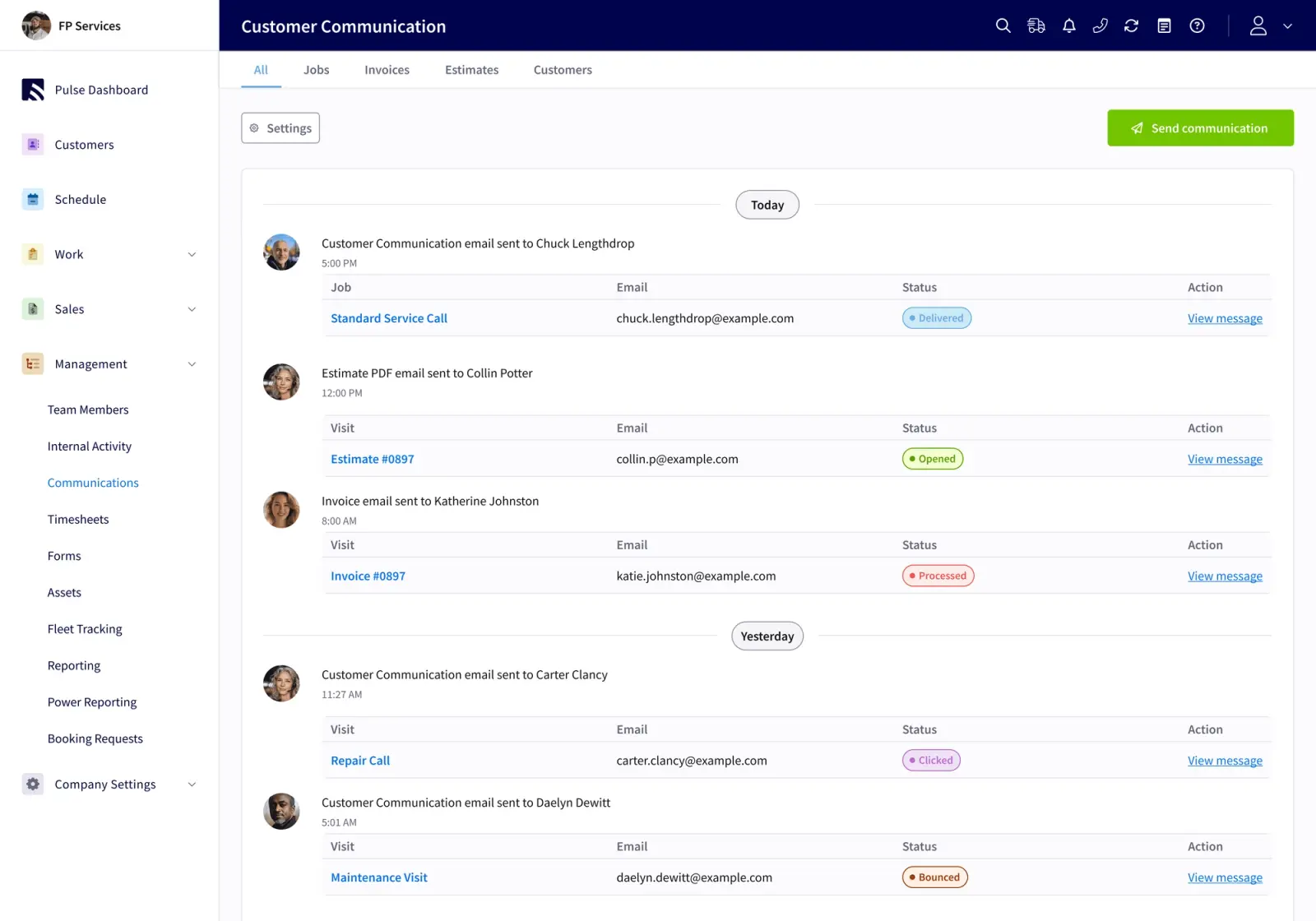
A field service CRM holds the customer record: contacts, service locations, job history, equipment and asset records, warranty documents, photos, invoices, and every logged communication. An FSM adds the operational layer on top: scheduling and dispatch, work orders, project management, timesheets, and job costing. In practice, the strongest platforms for growing residential teams combine both in one system so the customer record and the operational truth stay in sync instead of drifting across separate tools.
Who Needs To Be Involved In A Field Service CRM Rollout?
Three roles decide whether the rollout holds: the owner or operations lead, the office administrator or dispatcher, and the tech. The owner scopes the work and owns the business case. The office administrator is the adoption gatekeeper, so if they are unconvinced, the rollout stalls quietly no matter how much the owner likes the demo. The tech’s experience in the first week decides whether the implementation holds long-term.
What Happens To Our QuickBooks Data When We Switch?
Your existing QuickBooks Online customers and records come with you when you connect, so you are not rebuilding a customer list from scratch. Customers, line items, estimates, invoices, payments, purchase orders with full line-item detail, and vendors sync both ways. Timesheets flow into QuickBooks Online when a tech clocks out. Tax rates come from QuickBooks Online, invoice numbering can follow your existing sequence, and payments follow the standard invoice → payment → undeposited funds flow. A correction made in QuickBooks Online carries back into FieldPulse instead of being overwritten. QuickBooks Desktop is also supported.
Next Steps
Field service CRM implementation holds or stalls on three people: the owner who scopes the work, the office administrator who is the adoption gatekeeper, and the tech whose first week decides whether the whole thing sticks. The sequence matters. Scope before you configure, get your data right before you build workflows, and test the accounting sync before go-live.
Here are concrete next steps you can take today:
-
Document your current customer and asset data so you know what you have before you decide what to move.
-
List the capabilities you actually need on day one versus what can come later.
-
Bring your office administrator into the evaluation before you sign anything.
-
Ask every vendor you evaluate how a QuickBooks correction gets back into their field software.
FieldPulse is built for this size and shape of business: 7 to 50 technicians, residential trades, and one system your office and your field both work from. That system includes ClearPath in the core platform, and its QuickBooks Online sync runs both ways. FieldPulse’s in-house implementation team, including Implementation Managers, works with customers from onboarding through go-live. For small-to-midsize contractors, onboarding typically takes 1 to 4 weeks.
See How FieldPulse Connects Your Office And Field — Get A Demo