







Key Takeaways
- Dead zones are common for residential techs. When a field service app fails without signal, work gets lost, invoices are delayed, and trust in the tool erodes.
- True offline mode stores job details, forms, and customer data locally so techs can view, edit, and complete work without an internet connection. The app then syncs automatically when connectivity returns.
- When you evaluate apps, look for a generous cache window, multi-photo uploads, automatic draft protection, reliable sync, and smooth use in basements and crawlspaces.
- FieldPulse leads in offline capability with a 7-day cache, up to 50 photos at once, automatic draft saving, and full workflow continuity. These documented limits and reliability outperform competitors like Jobber and ServiceTitan.
- Choose an app that works where your techs work, one that keeps running in basements, crawlspaces, and rural areas.
How Offline Mode Works in a Field Service App
Offline mode in a field service app lets techs view job details, enter data, capture photos, and complete forms without an internet connection. When connectivity returns, the app automatically syncs that information to the office.
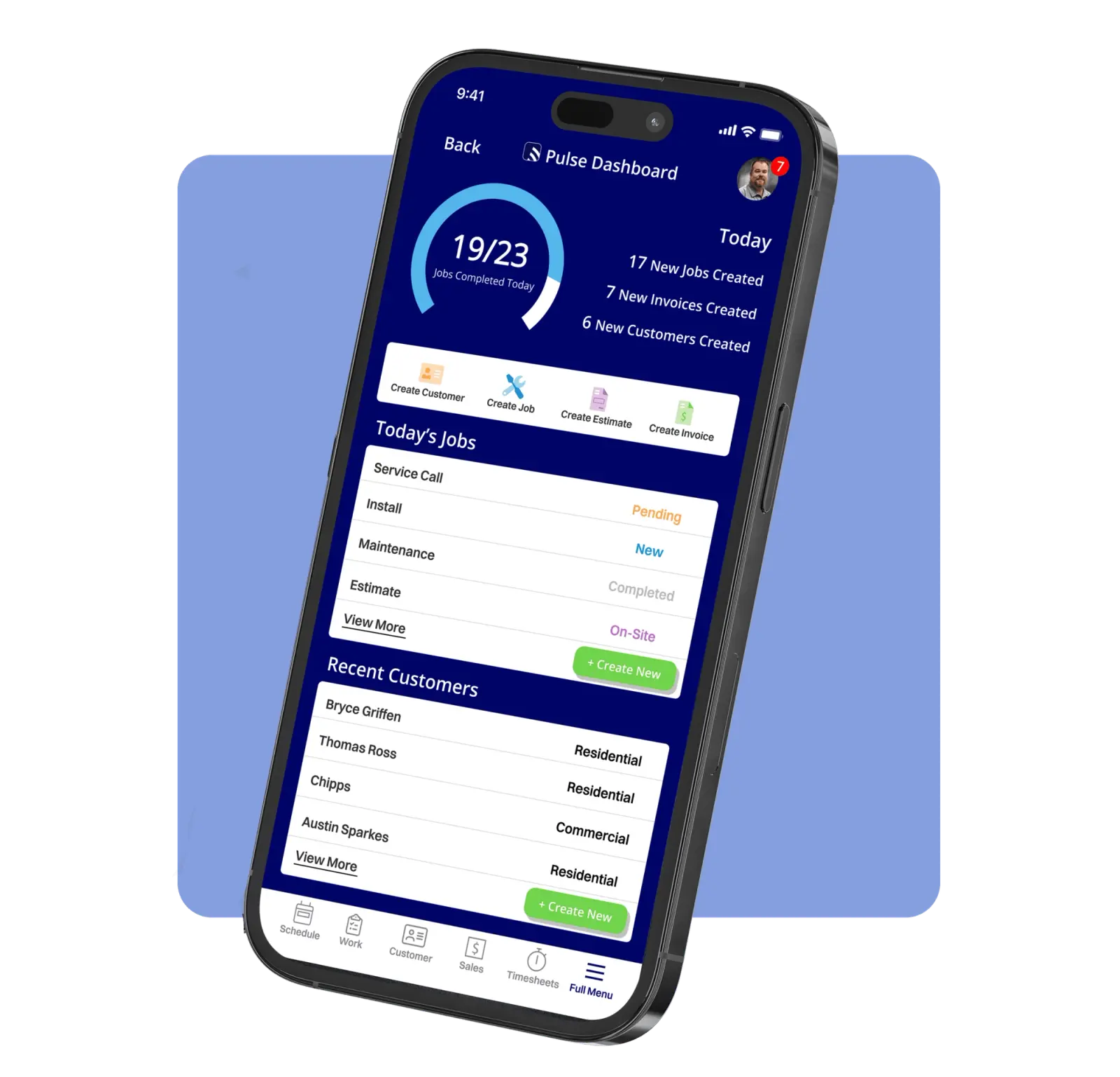
The mechanics matter. A true offline field service app stores data locally on the device, including job details, customer’s history, forms, and estimates, so the tech can work normally in a dead zone. When they enter information on-site, it saves to the phone first. When the device reconnects to cellular or Wi-Fi, the app syncs automatically to the office database. The app handles uploads and re-entry automatically.
For residential techs, this capability is essential. The water heater lives in the basement. The furnace is in the crawlspace. The electrical panel is in the garage. These are exactly the places where signal disappears. A field service app that works without signal lets the tech finish the job, document it completely, and move to the next call without driving around looking for bars.
What to Look for in an Offline Field Service App
Offline features vary a lot by vendor. Use these points to judge whether an app will actually support your techs in the field.
- Cache window. A strong app carries at least the past week of jobs, customers, and estimates. If the cache only holds today’s schedule, tomorrow’s first job in a dead zone will fail.
- Photo upload limits. Techs document work with photos, so the app must let them upload multiple images at once while offline. If it stops after one or two, they have to wait to document the rest of the job.
- Form handling. Techs often rely on forms for inspections and compliance. The app should let them edit existing forms offline and create new ones from templates so they can finish the visit in one pass.
- Draft protection. When signal drops mid-edit, the app should save the draft automatically. If it does not, a tech can lose twenty minutes of documentation and has to start over.
- Sync reliability. Data should sync automatically when signal returns. The app should also handle conflicts cleanly so you do not end up with duplicate entries or missing updates.
- Usability. A tech with cold hands and a wet phone should be able to navigate the app in under a minute. If the offline workflow adds extra steps that do not match how they work, adoption drops.
Comparing Leading Field Service Apps with Offline Mode
Here’s how the major field service apps stack up on offline capability. The key takeaway: FieldPulse documents the most generous offline limits, while competitors either restrict functionality or leave key details unspecified. Where vendor documentation does not specify a detail, that is noted rather than assumed.
| App | Offline Cache | Photo Upload | Draft Protection | Sync |
|---|---|---|---|---|
| FieldPulse | 7 days of jobs, projects, customers, estimates, invoices | Up to 50 photos at a time | Yes, active drafts become offline drafts automatically if signal drops | Automatic when signal returns |
| ServiceTitan | Job-specific data cached when opened online | Not specified in documentation | Partial, some actions require connection | Automatic |
| Jobber | 7 days of scheduled jobs | View-only offline, no new job creation | Unsaved changes lost if signal drops mid-edit | Manual sync required |
Here’s what those limits mean in practice for each vendor. FieldPulse is built for growing residential service teams. The offline cache carries a full week of jobs, projects, customers, estimates, and invoices. Techs can save unlimited job notes and upload up to 50 photos at a time. With the Custom Forms add-on, they can edit up to 600 existing forms and draft new ones from 20 cached templates.
They can also work from up to 600 cached estimates and invoices with 10,000 line items. If signal drops mid-edit, the active draft becomes an offline draft automatically. Everything syncs when the device is back in signal.
ServiceTitan offers offline capabilities for core job workflows, including status updates, time tracking, signatures, notes, photos, and estimates. Their documentation notes that features like purchase orders, customer financing, and inventory availability require an active connection. Techs must open jobs while online to cache job-specific data before heading to low-connectivity areas. ServiceTitan is built for larger operations, and its pricing and implementation reflect that.
Jobber offers some offline functionality, but published details are limited. Jobber’s offline mode is view-only for scheduled jobs. Techs can see details but cannot create new jobs, process payments, or sync updates until they reconnect. Independent testing found that unsaved changes are lost if the connection drops before the tech taps save.
For a team of 7–20 techs, the fit question matters more than the feature list. FieldPulse’s offline limits are specific, generous, and designed for the way residential teams actually work.
See FieldPulse’s offline mode in action. Get a demo.
Real-World Scenario: Signal Drops Mid-Job
An HVAC tech is in a customer’s basement, replacing a condensate pump. They have been on the job for an hour. They open FieldPulse to update the work order, add a photo of the old pump, and note the new part number. Halfway through typing the notes, the signal drops.
With FieldPulse, nothing is lost. The active draft becomes an offline draft automatically. The tech finishes the notes, attaches the photo, and captures the customer’s signature. When they walk up the basement stairs and the phone reconnects, everything syncs to the office. The tech does not have to re-enter information or call the dispatcher to confirm the job was documented.
This scenario separates a true offline field service app from one that merely claims the feature. The tech’s fear is not the dead zone. The fear is losing work they have already done. When a tech has to redo documentation because the app failed, they stop trusting the tool. When they stop trusting the tool, they stop using it.
Technician Adoption: Why Offline Mode Builds Trust
That scenario, losing work mid-job, explains why offline mode is as much a trust issue as a technical feature.
Your techs did not ask for new software. They will judge it in the first week, in the field, under real conditions. If the app loses their work when signal drops, they will revert to manual methods faster than you can schedule a training session.
The proof that adoption is possible comes from RDI, a commercial furniture installation company in St. Louis. Their field crew had used manual time cards for thirty years. When RDI rolled out FieldPulse’s time tracking, they expected adoption to take six months. They were running payroll off the app in two weeks.
The difference came from trust. The techs could see the app worked. It did not add friction to their day. When they were in a dead zone, the app kept working, which is exactly what offline mode delivers.
FieldPulse’s Mobile Focus is designed around this principle. It shows a tech only what the current job stage requires, so there is no clutter and no hunting through menus. Offline mode extends that approach. The app works the same whether the tech has five bars or none.
How to Test Offline Mode Before You Buy
You can and should test offline mode before you commit. Put the device in airplane mode and try common workflows such as viewing job details, updating status, capturing photos, and completing forms. In a demo, ask questions like these.
- What is the cache window? Ask how much data is available offline, and for how long.
- Can I upload photos offline? Ask how many photos you can upload at a time.
- What happens if I lose signal mid-edit? Confirm that the app saves your draft automatically.
- How does sync handle conflicts? Ask what happens if two people edit the same record offline and then reconnect.
- Can I create or edit forms offline? Check whether you can work with forms fully, or only view them.
When you evaluate FieldPulse specifically, ask to see a complete tech workflow, including what happens when signal drops. The demo should show a tech starting a job, losing connectivity, completing the documentation offline, and syncing when signal returns.
Your Techs Need an App That Works Where They Work
Your techs work in basements, crawlspaces, and rural areas where signal disappears. Your field service app needs to work there too.
As detailed in the comparison above, FieldPulse offers specific, generous offline limits, including a 7-day cache and 50-photo uploads. It is built for growing residential service teams that need techs to document work completely the first time, no matter where the job takes them. On average, FieldPulse customers experience 25% gains in efficiency, with office teams saving 40+ hours per month.
See how FieldPulse connects your office and your field on one workflow. Get a demo, or call sales at +1 (817) 635-2218.
Frequently Asked Questions
What is the difference between offline mode and an offline-first app?
Offline mode typically means an app has some ability to function without a connection, often limited to viewing cached data or completing a narrow set of actions. An offline-first app is built so the device’s local storage is the primary source of truth. Every action writes locally first, queues for sync in the background, and reconciles automatically when connectivity returns.
The practical difference shows up when signal drops mid-edit. An offline-first app saves your draft and keeps working. A basic offline mode may freeze, lose your work, or refuse to let you continue. When you evaluate any field service app, put the phone in airplane mode and try to complete a full job from start to finish. A true offline-first app behaves the same way online and offline.
How does FieldPulse handle offline mode for techs working in basements or rural areas?
FieldPulse caches the past seven days of jobs, projects, customers, estimates, and invoices directly on the device. Techs can save unlimited job notes, upload up to 50 photos at a time, update job statuses, and clock in and out, all without a connection. With the Custom Forms add-on, they can edit up to 600 existing forms and draft new ones from 20 cached templates.
They can also work from up to 600 cached estimates and invoices with 10,000 line items. If signal drops while a tech is actively editing a record, the draft transitions to an offline draft automatically, so nothing is lost. When the device reconnects, everything syncs to the office without any manual steps. A tech in a basement mechanical room or a rural service area can finish the job, document it completely, and move to the next call without interruption.
Why do techs stop using field service apps, and how does offline mode affect adoption?
Techs usually abandon a field service app when it makes their job harder instead of easier. If an app loses work when signal drops, forces them to re-enter information, or requires extra steps that do not match how they actually work, they go back to manual methods.
Offline mode plays a central role in adoption because dead zones are a daily reality for residential techs. Basements, crawlspaces, mechanical rooms, and rural service areas are where the work happens. An app that fails in those environments fails the tech.
FieldPulse’s Mobile Focus shows techs only what the current job stage requires, with checklists and single-tap actions instead of a full application to navigate. Combined with draft protection and automatic sync, the app stays out of the way and keeps working regardless of connectivity. As mentioned earlier, RDI’s crew switched from manual time cards to FieldPulse in two weeks.
What questions should I ask a field service software vendor about offline capability?
Start with specifics instead of marketing language. Ask how many days of data are cached on the device, and whether that includes customers, estimates, and invoices or just today’s schedule. Ask how many photos a tech can upload at once while offline.
Ask what happens if signal drops mid-edit, and whether the app saves the draft automatically. Ask how the app handles sync conflicts if two people edit the same record while one is offline. Ask whether techs can create or edit forms offline, or only view them.
Then verify the answers in a demo. Put the phone in airplane mode, run a complete job workflow, and watch what happens when you reconnect. If a vendor cannot demonstrate that scenario live, their offline mode may not hold up in the field.
How does FieldPulse’s offline mode compare to what Jobber and ServiceTitan offer?
FieldPulse, Jobber, and ServiceTitan all offer some offline functionality, but the depth varies significantly. As outlined earlier, FieldPulse documents generous offline limits, including a full week of cached work and support for large photo uploads, automatic draft protection, and automatic sync.
Jobber’s offline mode is view-only for scheduled jobs. Techs can see cached details but cannot create new jobs, process payments, or sync updates until they reconnect, and unsaved changes are lost if signal drops before the tech taps save. ServiceTitan offers offline capabilities for core job workflows including status updates, notes, photos, and estimates, but requires techs to open jobs while online before heading to low-connectivity areas to cache job-specific data. Features like purchase orders and inventory availability require an active connection.
For a residential service team of 7–20 techs, the key question is whether the offline limits match how your team actually works, and whether the app can demonstrate those limits in a live demo.