








Key Takeaways
-
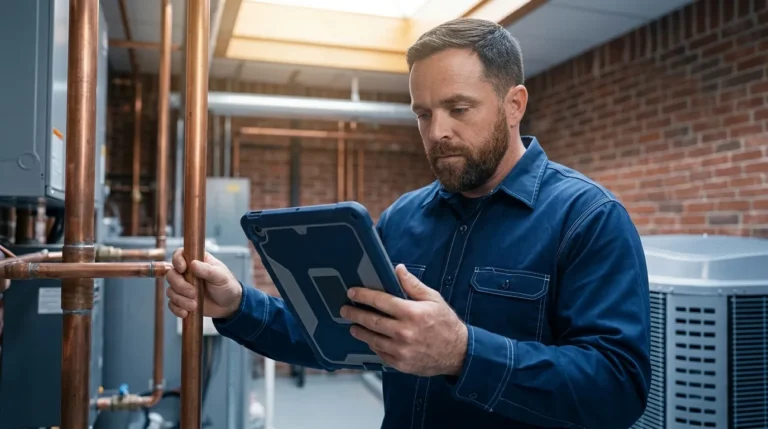
A technician mobile app should show the full day’s schedule, job details, customer’s history, and forms on a phone or tablet, then sync back to the office automatically.
-
Common app failures include outdated schedules, missing job context, signal-dependent forms, and closeouts that force duplicate work.
-
Effective apps let techs work offline for forms, photos, status updates, and job costing, then sync everything once signal returns.
-
Technician adoption drops when apps require too many taps, lose data offline, or force calls to the office for basic details like gate codes or equipment history.
-
FieldPulse closes these workflow gaps with strong offline caching, ClearPath status automation, and a clean office-to-field handoff that removes re-entry.
The Technician’s Day, Hour by Hour
The Night Before: Schedule Review
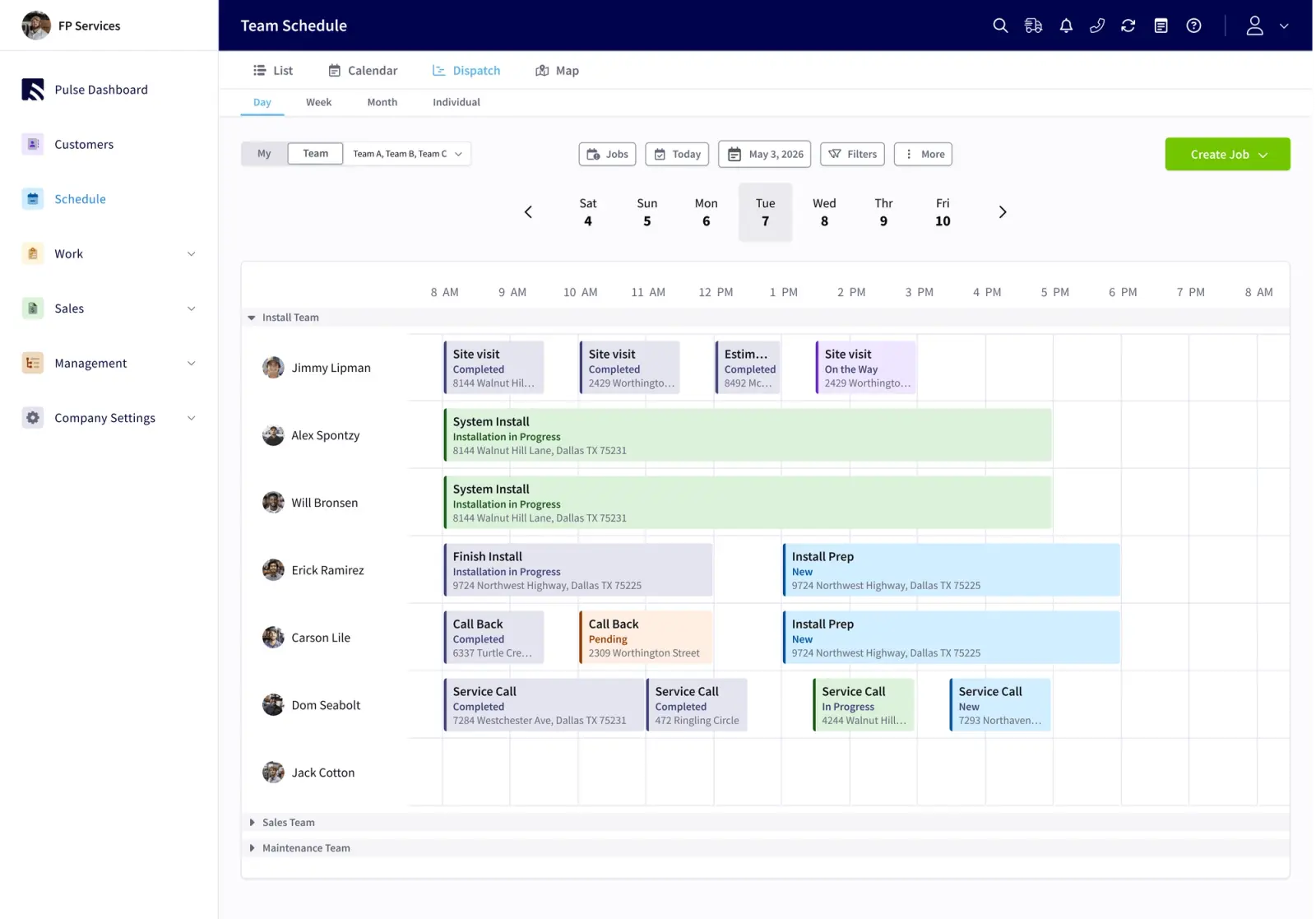
A tech who checks tomorrow’s schedule the night before arrives ready. A tech who cannot see an accurate schedule shows up guessing.
The failure point appears when the schedule at 7 PM does not match what the office finalized at 4 PM. The tech drives to the wrong address or calls the office before the first job.
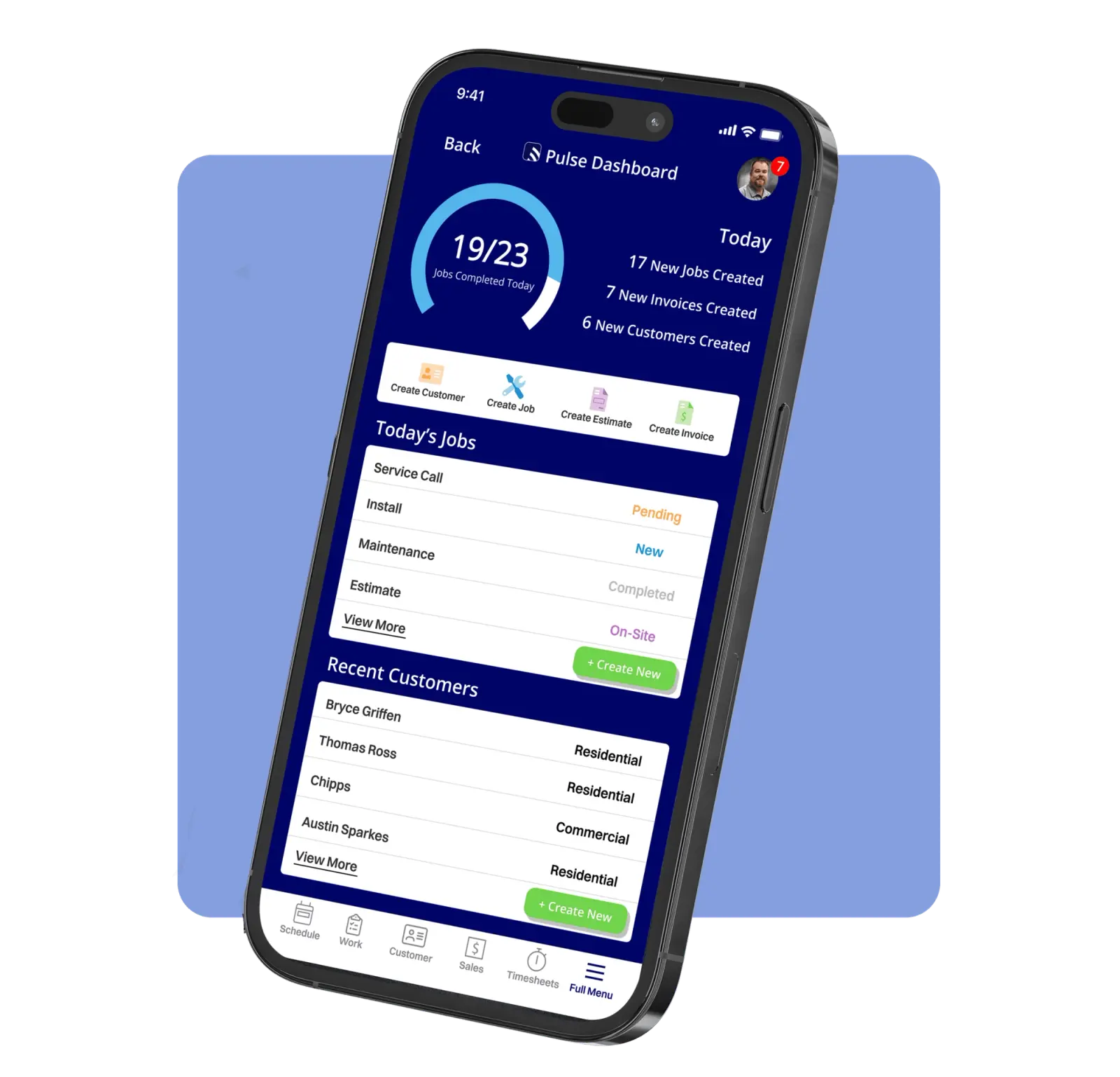
In FieldPulse, the mobile scheduling view shows the day’s jobs with address, contact, notes, and customer’s history. Your techs can review tomorrow’s schedule the night before and arrive already knowing what they are walking into.
Arrival: Job Context or a Phone Call
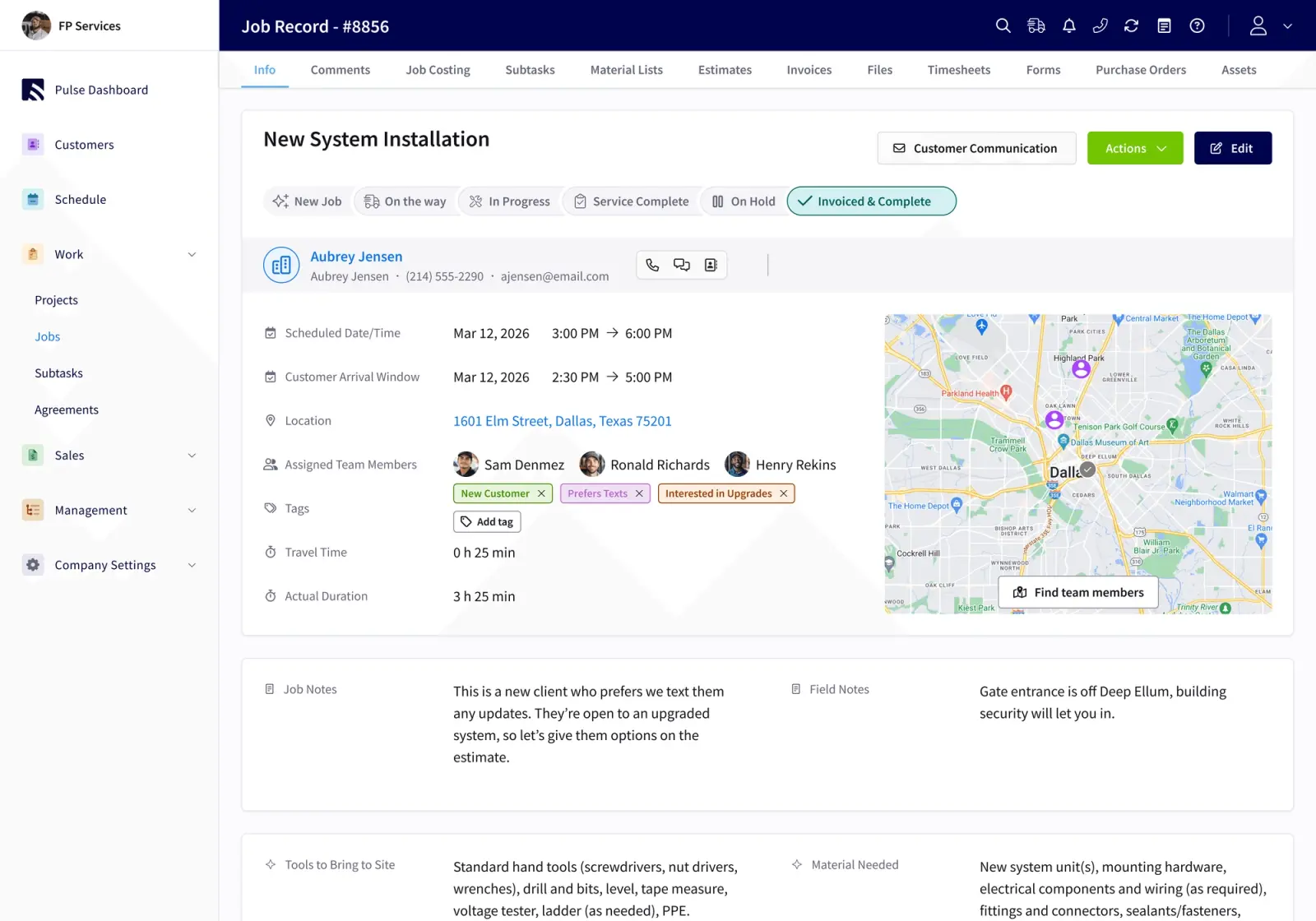
When the tech pulls up, the job record should answer four things right away. Where they are going, what they are doing, what they need to know about this customer, and what they must do to finish the job correctly.
The failure point comes when the job record has only the address. No equipment history, no gate code, no notes from the last visit. The tech calls the office. The office digs through access files, texts, and memory while the customer waits.
A well-built mobile app for service technicians puts prior job notes, the equipment record, and photos from the last visit on the tech’s phone before they knock on the door.
Job Execution: Forms, Photos, and Signal
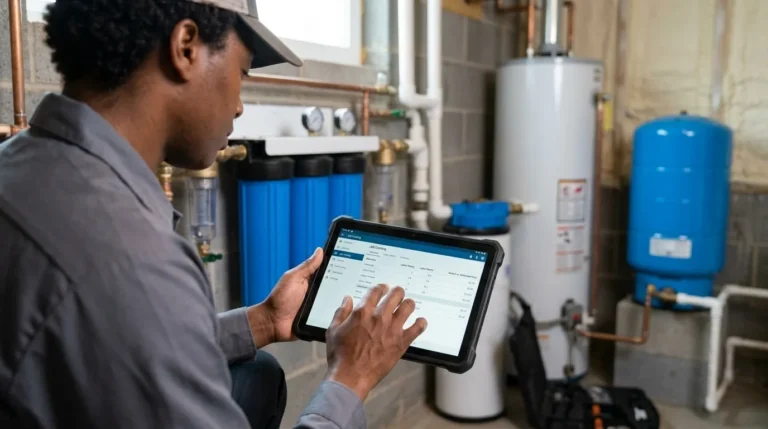
Many jobs take your techs into attics, basements, and mechanical rooms where signal drops. This moment exposes weak field service software.
The failure point appears when the app needs a live connection to save a form, attach a photo, or update a status. The tech finishes the job, walks back to the truck, and discovers the work did not save. They redo it from memory or skip it and try to reconstruct it later. Analysis of over 1,500 negative field service app reviews found that 40% of complaints cited crashes, sync failures, or the app simply not working, with crashing or freezing as the most common single theme at 16.6% of complaints.
A second failure point sits in the form design. Prometheus Group’s analysis of technician resistance to mobile apps found that apps requiring extensive data entry at the point of work consistently lose to paper in field conditions. They recommend that the most common actions take three taps or fewer.
Closeout: Signature, Payment, and the Second Pass
Once the job is done, the tech needs to capture a signature, record parts used, and close the work order. When the app makes this easy, it happens on site. When it feels painful, it gets pushed to later or skipped.
The failure point appears when closeout requires several screens, re-entering information already captured, or waiting on a connection. The tech skips steps. The office receives an incomplete record. Someone in the office rebuilds the job from texts and calls before sending an invoice.
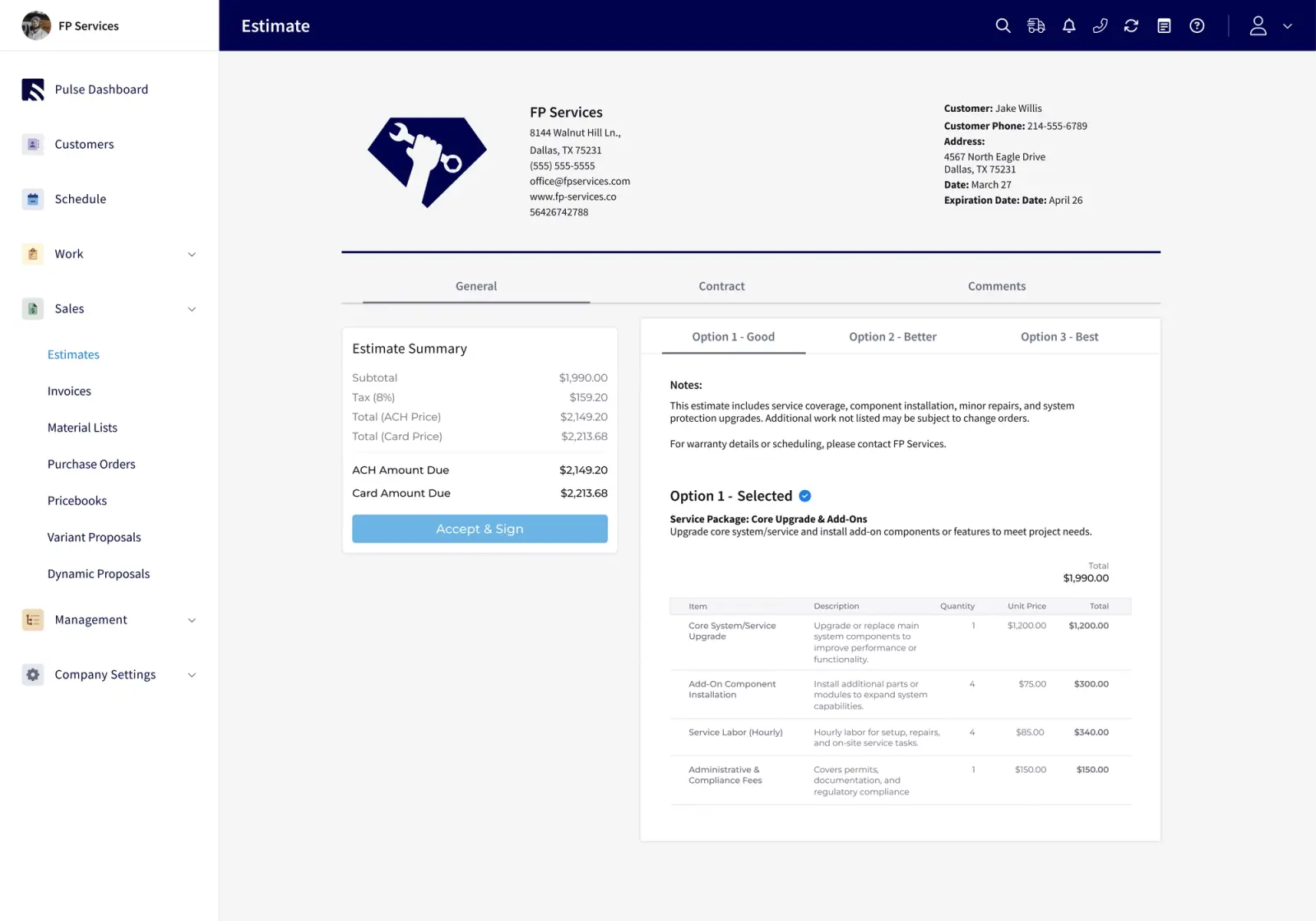
This pattern creates a double-entry problem. The tech does the job once in the field. The office does it again at an office. That second pass grows with volume instead of revenue and becomes one of the first things that breaks operationally as your team grows.
Core Capabilities of a Technician Mobile App
Seven capabilities decide whether a field service mobile app helps your techs finish the job or fights them at every step. Each one ties to a real scenario your team faces daily.
-
Show the Day’s Jobs Without Extra Tapping. The first screen after opening the app should display today’s jobs in order. Your tech sees customer name, address, job type, and scheduled time without extra navigation.
-
Arrive With Equipment History and Access Instructions. Gate codes, prior service notes, equipment serial numbers, and photos from the last visit should live on the job record before the tech reaches the door.
-
Work Offline for Forms and Photos. FieldPulse caches the past week of jobs, projects, customers, estimates, and invoices on the device. With the Custom Forms add-on, your techs can edit up to 600 existing forms and draft new ones from 20 cached templates, then upload up to 50 photos at a time, all without a connection.
-
Update Job Status Without Calling In. Status changes should reach the office automatically. The dispatcher sees job progress without interrupting the tech.
-
Clock In by Job. Time tracked against a specific job, not just a weekly total, makes job costing visible. Without it, you guess at profit margin after the fact.
-
Build Estimates From Preset Pricing. With the Pricebook add-on, your techs can build estimates in the field from standard pricing and convert them to invoices without re-entry.
-
Collect Payment on Site. Card and ACH payment capture at the job shortens the gap between completed work and money in your account.
FieldPulse’s offline caching also covers up to 600 estimates and invoices with 10,000 line items, 300 cached material lists, and 100 bundle items. If signal drops mid-edit, the active draft becomes an offline draft automatically and syncs as soon as the device reconnects.
Why Technicians Stop Using Field Service Apps
Technician app abandonment usually gets blamed on training, but design causes most of the trouble. An app built for a conference room rarely fits a crawlspace.
Research across small multi-trade shops found that the first mobile app tested often fails within the first month because the app hinders techs mid-workflow. The specific reasons follow a clear pattern.
-
Clunky Interfaces. A FieldAware study found that 63% of field technicians believe their mobile apps are not user-friendly, and research by Fieldman found that 57% of field service workers are frustrated by the apps and devices they use. An app designed for a mouse and large screen turns into a wall of tiny buttons on a phone in a gloved hand.
-
Duplicate Closeout Work. When the app does not carry field data to the office automatically, the tech closes out twice. They do it once on site, then again later in another system. That second pass is the one that gets skipped.
-
Constant Calls to the Office. Missing equipment history, gate codes, or prior visit notes push the tech to call. Each call signals that the app is not doing its job.
-
Unclear Next Steps. An app that exposes every menu and report instead of guiding the current job stage adds mental load at the worst time.
-
Arriving Without Context. A tech who shows up without the customer’s history or access instructions loses credibility before work starts.
-
Losing Work When Signal Drops. Roughly 20% of service calls take place in areas with poor or nonexistent cellular coverage. An app that loses work in those conditions gets abandoned, and the habit of bypassing the app tends to stick.
-
Hard-to-Use Software. When nobody creates invoices on-site, the invoice flow has too many steps. When status updates get skipped, updating status takes too many taps. These patterns point to design problems, not discipline.
The result is a set of shadow systems. Techs take photos on personal phones, write notes on paper, and batch-update work orders at the end of the day when memory is fuzzy. When mobile apps frustrate technicians, they create these workarounds, which defeats the purpose of digital tools and hurts data accuracy.
See How FieldPulse Prevents Duplicate Closeout Work
How Offline Mode Should Work in a Field Service App
Offline mode needs clear behavior, not vague promises. Your techs should know exactly what still works when signal drops.
A strong offline setup caches the data your techs need before they lose signal, stores everything they capture locally, and syncs automatically when the device reconnects. The tech should not see spinners or error screens because of weak coverage.
FieldPulse’s offline caching works like this:
-
The past week of jobs, projects, customers, estimates, and invoices rides along on the device.
-
Your techs can add unlimited job notes, upload up to 50 photos at a time, update statuses, and clock in and out without a connection.
-
With the Custom Forms add-on, they can edit up to 600 existing forms and draft new ones from 20 cached templates.
-
Up to 600 cached estimates and invoices with 10,000 line items stay available offline, along with 300 material lists and 100 bundle items.
-
If signal drops mid-edit, the active draft becomes an offline draft automatically, so work is preserved.
-
Everything entered offline saves locally and syncs as soon as the device returns to signal.
Some actions still require a connection. FieldPulse needs signal for payment collection except for cash marked later, purchase order creation, and new customer or job record creation. Your techs can still complete most of the job in a basement or rural area, then sync once they drive back into coverage.
When you evaluate offline capability, ask whether offline mode requires pre-login, how long offline data stays on the device, and what happens if the app closes before sync. The practical test is simple. Put the phone in airplane mode and confirm that job details, forms, and photos still work. Walk away from the app if it fails that test.
The Office-to-Field Handoff and What the Office Needs Back
Your office needs a complete, billable record from the field without chasing it by phone.
In FieldPulse, the job record carries parts, labor, notes, photos, and signatures from the field to the office as the work happens. The tech records what happened on site. The office sees it in real time and converts the record to an invoice without re-entry.
Here is how that handoff works in practice:
-
The dispatcher assigns the job and sets the stage. The tech receives the job on their phone with full context, including customer’s history, equipment records, access instructions, and notes from prior visits.
-
The tech updates status as the job moves through stages. ClearPath status workflows push that progress to the office automatically, so the dispatcher knows where a job stands without calling the truck.
-
At the right stage, ClearPath triggers customer notifications such as “On the Way” texts and completion notices. The dispatcher configures these triggers once, and the system sends them.
-
The tech completes the job, captures the customer’s signature, records parts used, and closes the work order on site. The office sees that record immediately.
-
The office converts the completed job to an invoice. No reconstruction, no chasing the tech for details, and no second pass.
Because the office and field share one customer and job record, your office team can answer a customer’s question about a job in progress without interrupting the tech. Many field service software tools miss this level of handoff.
Technician App vs. Full Field Service Management Platform
A technician app is the mobile surface your techs use in the field. An FSM software platform carries the job from first call to final payment.
That full path includes scheduling, dispatch, job costing, invoicing, payments, and reporting. The distinction matters because a standalone technician app only addresses the field half of your process.
With a standalone app, schedule changes still require phone calls, invoices still require re-entry, and job economics stay hidden. FieldPulse provides a complete field service management platform with the technician app as the field half of the workflow. The office and field share the same job record, the same customer’s history, and the same pricing, so information moves through the system instead of through manual handoffs.
How to Evaluate a Technician App
You get the clearest picture of a technician app by testing it on a real phone in conditions that match your jobs.
During a demo, walk through these steps:
-
Ask to see a complete technician workflow from schedule review the night before through closeout and payment collection on site.
-
Ask what happens when signal drops. Put the phone in airplane mode and confirm that job details, forms, and photos still work.
-
Hand the phone to a tech and ask them to find their first job, get directions, update status, and submit an invoice without instructions. Watch where they hesitate.
-
Ask how the completed job record reaches the office and whether that flow is automatic or manual.
-
Ask how the system handles conflicts when a dispatcher updates a job while a tech is offline and then reconnects.
If it takes more than two taps to see today’s job queue after opening the app, treat that as a red flag before you sign.
Test FieldPulse With Your Own Workflow
What’s Changing: AI in Technician Apps
AI in field service now supports daily operations in specific ways instead of acting as a general-purpose assistant.
FieldPulse’s Operator AI answers after-hours, declined, and overflow calls and books jobs directly into FieldPulse. It asks qualifying questions, creates the customer and job record after the call, and places the job on the dispatch board. It speaks English and Spanish, and 95% of callers finish with a job scheduled. Operator AI won the NECA Innovator Award in 2025.
Chat AI performs a similar role for website visitors. It captures leads, answers common questions, and books work directly into FieldPulse in more than 30 languages, then produces clear summaries in English.
These tools support your office staff by catching calls and conversations that would otherwise go unanswered during after-hours periods and busy stretches. Your team still controls pricing, scheduling rules, and final decisions.
The broader direction for field service AI focuses on context-aware help. That includes surfacing the right job history before a tech arrives, auto-completing post-visit notes, and generating customer-facing summaries from structured field data. The most useful AI features in field service today center on retrieval and summarization of operational data rather than autonomous decision-making, which keeps your team in control.
Frequently Asked Questions
How Long Does It Take to Get a Technician Mobile App Running?
For FieldPulse, onboarding typically runs two to six weeks. Timing depends on your team size, which capabilities you turn on, how much data you migrate, and how your accounting connects. An implementation manager leads recurring working sessions with your team and breaks the work into phases with small tasks between sessions. Faster launches happen, but planning around the two-to-six-week window keeps expectations realistic.
Will My Technicians Actually Use It?
Adoption depends on whether the app makes your techs’ day easier. During a demo, run the “hand-the-phone-to-a-tech” test from the evaluation section above. ClearPath’s Mobile Focus View helps here by showing your techs only what the current job stage requires, which means fewer taps and faster ramp-up. RDI’s field crew had used manual time cards for thirty years, expected six months to adopt the app, and started running payroll from FieldPulse in two weeks.
What Happens to Job Data If the Phone Is Lost Before Syncing?
This risk deserves a direct answer from every vendor. In FieldPulse, everything entered offline saves locally and syncs as soon as the device returns to signal. If a phone is lost before syncing, data captured only on that device would not yet sit on the server. The practical step is to test your typical sync window. Look at how long a tech usually works without signal and how quickly the device syncs once coverage returns. For most residential jobs, sync completes before the tech leaves the site or shortly after.
How Does the App Handle a Job That Runs Long With No Signal?
FieldPulse caches the past week of jobs, projects, customers, estimates, and invoices on the device. Your tech can add notes, capture photos, update status, clock in and out, and edit cached forms without a connection. If signal drops mid-edit, the active draft becomes an offline draft automatically and syncs when the device reconnects. The tech keeps their work, and the office receives the complete record once the truck returns to signal.
Can the Office See Job Progress Without Calling the Technician?
Yes. ClearPath status workflows push job progress to the office as your techs move through stages. The dispatcher sees each job’s status without calling the tech. Customer notifications, such as “On the Way” texts, fire automatically at the right stage. One shared customer and job record lets your office answer questions about work in progress without calling the truck.
What Should I Test in a Demo?
Use the five-step demo checklist in the evaluation section above. The airplane-mode test and the hand-the-phone-to-a-tech test give the clearest signal on real-world adoption.
The Real Test of a Technician Mobile App
An app that fights your tech in a crawlspace, loses work when signal drops, and forces duplicate closeout work creates workflow problems, not training gaps. That kind of app was built for a conference room instead of a job site.
FieldPulse connects your office and field on one workflow. ClearPath’s Mobile Focus View shows your techs only what the current job stage requires. FieldPulse’s offline caching keeps the past week of jobs on the device. The job record carries parts, labor, notes, photos, and signatures from the field to the office as the work happens and converts to an invoice without re-entry.
On average, FieldPulse customers see 25% efficiency gains. Office teams save more than 40 hours per month, and field teams see a 50% increase in on-time delivery.
See the Full Technician Workflow in a Demo